
Elgato Stream Deck Review: Setup, Uses, Prices, and Buying Advice
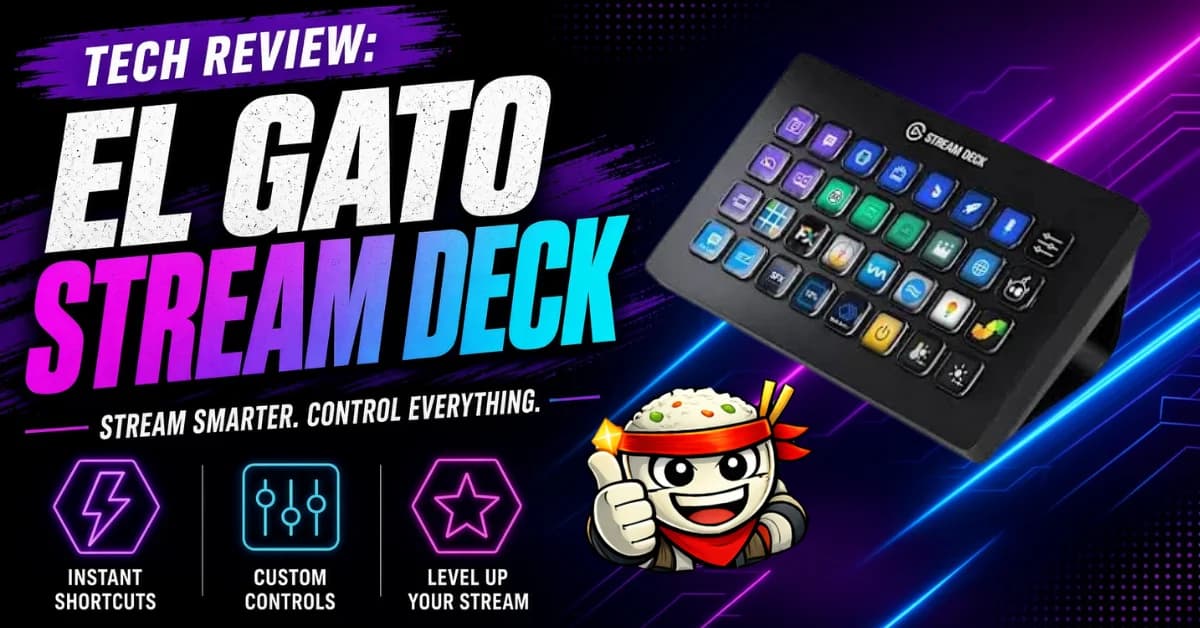
The Elgato Stream Deck is not just a panel of stream buttons. It is a physical control layer for your PC or Mac: one press can switch an OBS scene, mute Discord, launch a game, open a project workspace, adjust audio, post a chat message, or run a multi-step macro you would otherwise repeat by hand.
That is why the Stream Deck keeps showing up on desks that have nothing to do with livestreaming. Streamers use it because the value is obvious. Gamers, editors, developers, podcasters, and remote workers end up using it because the same logic applies everywhere: if you do the same action often, putting it on a labeled LCD key is faster than hunting through menus.
Quick verdict
| Best model for most people | Stream Deck MK.2, because 15 keys gives enough room for streaming, gaming, work, and system controls without taking over the desk. |
|---|---|
| Best budget pick | Stream Deck Neo, because it keeps eight LCD keys, adds two Touch Points, and costs less than the full-size model. |
| Best power-user pick | Stream Deck XL, because 32 keys lets you keep more actions visible instead of burying them in folders and pages. |
| Best audio pick | Stream Deck +, because the dials and touch strip make volume, lighting, and fine controls feel natural. |
| Main tradeoff | The hardware is only as useful as the profiles you build. A weak setup makes an expensive macro pad feel optional. |
What is the Elgato Stream Deck?
The Stream Deck is a USB control pad with customizable LCD keys. Each key can show an icon, label, status, or live feedback state. Pressing a key can trigger a simple action, a keyboard shortcut, a plugin command, or a sequence of actions.
Elgato lists the current 15-key Stream Deck at $149.99 and describes it as an "OG 15-Key Control Pad." The product page says it can trigger actions, launch apps, and control your setup from customizable LCD keys. That description is accurate, but it undersells the real advantage: you can make complex software workflows visible and physical.
A keyboard shortcut is powerful only if you remember it. A Stream Deck key is labeled, lit, and always in the same place. That changes how quickly you can act while gaming, streaming, editing, or working.
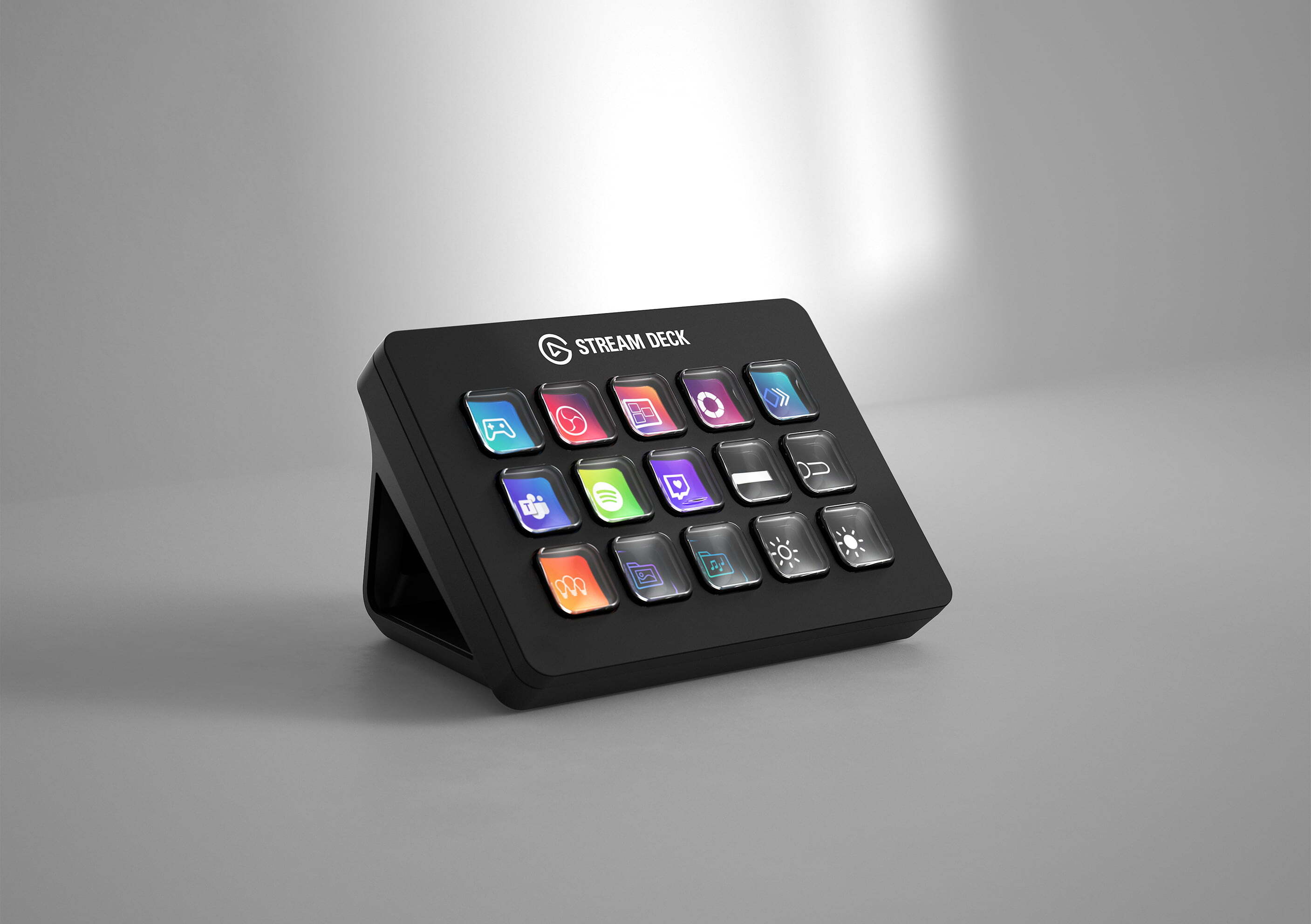
Image source: Elgato Stream Deck product page.
Models, prices, and official Amazon links
Prices move around on Amazon, especially during sales, so the clearest baseline is Elgato's own listed pricing. As of this review, Elgato lists Stream Deck Neo at $99.99, Stream Deck MK.2 at $149.99, Stream Deck + at $179.99, and Stream Deck XL at $249.99. Use the Amazon links below for current availability from Elgato's official store listings.
| Model | Elgato list price | Controls | Best fit | Official Amazon listing |
|---|---|---|---|---|
| Stream Deck Neo | $99.99 | 8 LCD keys, 2 Touch Points, and Infobar | Small desks, work shortcuts, and first-time users | Elgato Stream Deck Neo on Amazon |
| Stream Deck MK.2 | $149.99 | 15 customizable LCD keys | Most streamers, gamers, and general desk setups | Elgato Stream Deck MK.2 on Amazon |
| Stream Deck + | $179.99 | 8 LCD keys, 4 push dials, and an LCD touch strip | Audio, lighting, production, and volume-heavy workflows | Elgato Stream Deck + on Amazon |
| Stream Deck XL | $249.99 | 32 customizable LCD keys | Large stream setups, studio control, and power users | Elgato Stream Deck XL on Amazon |
The MK.2 is the right default. Fifteen keys is enough to keep your primary actions visible, and Stream Deck profiles, folders, and pages let you expand from there. The Neo is better if you want the Stream Deck idea at a lower price with a smaller footprint. The XL is for people who already know they hate paging through layers. The + is not just a Stream Deck with fewer keys. It is the one to buy when physical dials matter.
Setup: what the first hour should look like
Setup starts with the Stream Deck desktop app, which Elgato provides as a free download for Windows and macOS. Plug in the device, open the app, and you will see a digital version of your key grid. From there, you drag actions onto keys, assign labels and icons, and test each button.
The mistake is trying to build a perfect 40-action command center on day one. Start with the actions that interrupt you most often. A good first setup for most people is:
- Add five actions you use every session.
- Put the highest-pressure actions on the easiest keys to hit.
- Use icons and labels that make sense at a glance.
- Create one profile for streaming or gaming and one profile for work.
- Add folders only after the first page is full.
- Build one Multi Action after single actions are reliable.
Stream Deck feels best when every key has a reason to exist. If a button saves one click per week, it does not belong on page one. If a button prevents you from tabbing out during a match, missing a live cue, or repeating a setup routine, it deserves prime placement.

Image source: Elgato Stream Deck workflow examples.
Streaming setup: OBS, scenes, chat, and audio
For streaming, the Stream Deck is still in its natural lane. Install the OBS plugin, connect it to OBS Studio, and map the basics first: start stream, stop stream, start recording, switch scenes, mute mic, toggle desktop audio, and hide or show important sources.
A practical first-page streaming layout looks like this:
| Key group | Actions | Why it matters |
|---|---|---|
| Top row | Start stream, stop stream, start recording, clip marker, stream marker | High-level session controls stay visible. |
| Middle row | Starting soon, gameplay, BRB, intermission, ending scene | Scene changes become deliberate taps instead of OBS window hunting. |
| Bottom row | Mute mic, mute Discord, toggle music, launch chat, run go-live macro | Audio and communication controls stay available during gameplay. |
Multi Actions are where the Stream Deck becomes more than a shortcut board. One "Go Live" key can launch OBS, open your chat dashboard, switch to your Starting Soon scene, post a Discord message, and start recording after a delay. A matching "End Stream" key can switch to the outro scene, stop recording, open your VOD folder, and reset your lights.
Keep destructive actions away from keys you can hit by accident. Stop stream, delete replay buffer, or shutdown routines should be separated from common scene and mute controls. A good layout reduces panic. It should not create new ways to ruin a broadcast.
Gaming setup: fewer interruptions, faster routines
For gaming, the Stream Deck is strongest as a support device. It will not replace a keyboard, mouse, controller, or in-game binds. It handles the actions that live around the game: Discord controls, audio routing, capture shortcuts, launcher routines, overlays, lighting, and web references.
That means your setup depends on the kind of games you play. MMO players may want quick access to build guides, timers, Discord channel controls, and macro text snippets. Survival players may want server dashboards, map links, push-to-talk, and clip capture. Sim players can make the Stream Deck a small button box for camera changes, telemetry tools, and repeated cockpit commands.
For most gaming desks, I would start with this layout:
| Use case | Stream Deck action | Example |
|---|---|---|
| Session launch | Open apps and folders | Launch game, Discord, voice channel, and patch notes. |
| Voice control | Hotkeys or Discord plugin actions | Mute mic, deafen, swap audio device, or open the right channel. |
| Capture | OBS, NVIDIA, or capture app shortcuts | Save replay, start recording, mark clip, or toggle camera. |
| Reference | Website actions | Open build planner, wiki page, server status, or map. |
| Desk control | Plugin commands | Change lights, adjust music, or switch monitor profiles. |
The best gaming use is avoiding alt-tab chaos. If you have to leave the game to mute Discord, open a wiki, change music, or start a recording, you have already lost focus. A Stream Deck keeps those support actions off to the side where they belong.
Productivity setup: the hidden reason to keep it plugged in
The Stream Deck becomes easier to justify when you use it outside of streams and games. A button that starts your whole workday has real value. Open your editor, browser tabs, project folder, task board, music app, and terminal in one press. Add a delay between launches if an app needs time to load.
Developers can map build commands, format actions, terminal toggles, local URLs, pull request pages, and bug tracker searches. Editors can map export presets, timeline tools, color panels, and folder shortcuts. Remote workers can map Zoom mute, camera toggle, screen share, meeting notes, and calendar links.
Elgato's current Stream Deck feature set supports profiles, pages, folders, plugins, Multi Actions, and Key Logic. That matters because one physical device can change based on context. Your Zoom profile can appear when Zoom is active. Your editing profile can appear inside a video editor. Your global profile can stay available everywhere else.
This is the part that makes the device sticky. The first week is about streaming controls. The second month is about all the small desk tasks you stop doing manually.
Stream Deck +: why the dials matter
The Stream Deck + is a different recommendation because it changes the input style. Elgato lists it with 8 customizable LCD keys, 4 push dials, and a 108 x 14 mm LCD touch panel. It uses the same Stream Deck software, but the dials make it better for continuous controls.
Volume is the obvious use. Turning a dial to adjust game audio, Discord, music, or microphone monitoring feels better than tapping a key repeatedly. The same applies to lighting brightness, camera zoom, white balance, timeline scrubbing, or any plugin that benefits from gradual adjustment.
The tradeoff is key count. Eight LCD buttons is enough for focused setups, but it is not as flexible as the 15-key MK.2 for broad command layouts. Buy Stream Deck + when you know dials will be part of your daily use. If you only want one-tap shortcuts, the MK.2 gives more keys for less money.

Image source: Elgato Stream Deck + product page.
Stream Deck Neo and XL: the two edge cases
The Stream Deck Neo is the compact option. Elgato lists it with 8 customizable LCD keys, 2 Touch Points, a customizable Infobar, USB 2.0 Type-C connectivity, and support for the same free Stream Deck software. The Infobar is useful for quick glance data, and the smaller body makes sense if your desk is already crowded.
Neo is the right first Stream Deck for someone who wants calendar, meeting, music, and work controls more than a full broadcast surface. It is also the cleanest pick for a laptop desk.
The Stream Deck XL goes the other direction. Elgato lists it with 32 LCD keys, a removable magnetic stand, and the same profile, folder, plugin, and Multi Action system as the smaller models. It is for users who want more commands visible at once.
XL makes sense for advanced live production, flight and racing sim controls, studio desks, and anyone who hates nested folders. It is also the easiest Stream Deck to overbuild. If you cannot name 20 actions you will use constantly, start smaller.

Image source: Elgato Stream Deck Neo product page.
Capabilities that actually matter
The Stream Deck's feature list can sound generic until you map it to real desk behavior. The important capabilities are:
- Hotkeys: Send keyboard shortcuts to the active app.
- Open actions: Launch apps, files, folders, or websites.
- Text actions: Paste repeated text, commands, links, or templates.
- Multi Actions: Run a sequence of actions from one key.
- Plugins: Control supported apps directly instead of faking it with hotkeys.
- Profiles: Save separate layouts for different apps or workflows.
- Smart Profiles: Switch layouts automatically based on the active app.
- Pages and folders: Expand one physical device into more command surfaces.
- Visual feedback: Show status changes on the key, such as muted, live, active, or inactive.
- Key Logic: Assign different actions to press, double-press, or press-and-hold on supported models and software setups.
Plugins are the reason Stream Deck beats generic macro pads. Hotkeys are useful, but plugins can expose app-specific controls and feedback. That is how a button can show whether a mic is muted, a scene is active, or a track is live. For creators, that feedback matters as much as the press.
What it does badly
The Stream Deck is not a magic productivity upgrade by itself. If you do not invest time in profiles, icons, naming, and layout, it becomes an expensive launcher. The hardware will not tell you which actions deserve dedicated keys. You have to notice friction in your own workflow and map the deck around it.
It is also weaker for actions that already have perfect muscle-memory shortcuts. If Ctrl+C, Ctrl+V, Alt+Tab, or a common game bind is already effortless, moving it to a Stream Deck may be slower. The device is best for actions that are hard to remember, hard to reach, multi-step, visual, or context-dependent.
There is also a desk-space cost. The MK.2 is not huge, but it is another object near your keyboard. The XL is large enough that placement matters. Before buying, think about where your hand will naturally reach. A Stream Deck shoved behind a monitor stand will not become part of your routine.
Which Stream Deck should you buy?
Buy Stream Deck MK.2 if you want the safest recommendation. It has enough keys for a serious layout, it costs less than the XL and + models, and it is broad enough for streaming, gaming, and desk automation.
Buy Stream Deck Neo if price and footprint matter more than key count. It is the easiest model to recommend for work desks, laptop stations, and people who want a cleaner entry point.
Buy Stream Deck + if audio, lighting, or fine adjustment controls are part of the job. The dials justify the model. Without dial-heavy workflows, the smaller key count is a real tradeoff.
Buy Stream Deck XL if you already know 15 keys will annoy you. It is overkill for casual use and excellent for control-heavy setups.
Skip the entire category if you want plug-and-play value without configuration. Stream Deck rewards setup. If you will not build profiles, it will underperform.
Verdict
The Elgato Stream Deck earns its desk space when you treat it as a workflow device, not a novelty keypad. The hardware is simple, but the software ecosystem makes it powerful: plugins, profiles, folders, pages, Multi Actions, and visual feedback turn routine software actions into physical controls.
For most people, the MK.2 is still the best starting point. It has the right balance of price, key count, and flexibility. Stream Deck Neo is the smart budget choice, Stream Deck + is the best option for audio and dial control, and Stream Deck XL is the production desk pick.
Start with five buttons you will use every day. Build one profile for your main use case, then add a second profile for work or gaming. The Stream Deck gets better as your setup gets more honest. Put real friction on the keys, and it becomes one of the few desktop accessories that can change how your whole system feels.
- ApexInterfectum Co-Founder, PUG Empire
Written by
ApexInterfectum
Co-Founder, PUG Empire | Army Veteran | Full Stack Developer
ApexInterfectum is an Army veteran and co-founder of PUG Empire, a competitive gaming community built on coordinated team play and continuous improvement. He brings a full-stack development background to community tooling and content infrastructure, and serves as technical subject matter expert across the Dirty Rice platform. His writing covers the systems and strategies behind sustainable content creation, competitive growth, and modern streaming workflows.
Community Rating
Rate this article:
Intel & Reactions - (1)
Sign in with Discord to join the conversation.

These things are dope. I've got one for work and a big one for gaming, couldn't live without. I never though of trying to use with VS Code or non gaming stuff, I'll have to look through the store again soon..