
Steam Remote Play Together: How to Play Couch Co-op With Friends Online

The best couch co-op game in your library does not have to stay on your couch. Steam Remote Play Together lets a host run a supported local multiplayer game and invite friends to play over the internet. Your friends see the game stream and send their controller or keyboard inputs back to the host's computer.
That setup solves a real game-night problem: one person owns the game, but the rest of the group lives somewhere else. It also introduces a few limits that are easy to miss. The host's PC is doing the work, everyone shares the game's local multiplayer view, and the connection needs to carry both the video and the players' inputs. Here is how to get a session running, fix the usual problems, and decide when ordinary online co-op is the better choice.
What Remote Play Together actually does
Think of Remote Play Together as a virtual version of sitting around one gaming PC. The host launches a supported game through Steam. Instead of handing a second controller to someone beside the desk, the host invites a friend, who receives a live stream of the game and sends inputs back.
The game is running on the host's machine. Guests do not need to own or launch their own copy for a supported Remote Play Together session. Valve says the host can invite up to four players, or more when connections allow, but the game's own local player limit still matters. A game with two local slots does not become a four-player game just because Steam can connect more people.
You are generally sharing the same game screen or the game's existing split-screen view. A player cannot automatically wander into a completely separate area with a private camera unless the game already supports that in local multiplayer. That distinction matters for puzzle games with hidden information, games where one person needs to read small text, and anything that assumes everyone is physically looking at the same display.
Valve's Remote Play support guide describes the host and guest setup. Check each game's Steam store page for the Remote Play Together feature before buying or organizing a session. A game may support ordinary Remote Play to your own devices without supporting Remote Play Together with friends.

Photo: Alena Darmel on Pexels.
Remote Play Together, online co-op, and Steam Families
These features solve different problems. Picking the right one before game night can save your group a lot of troubleshooting.
| Feature | Where the game runs | What to check |
|---|---|---|
| Local co-op | One device in the same room | Local player count, controller support, and screen layout |
| Remote Play Together | The host's computer, streamed to guests | The game's Remote Play Together label and local player limit |
| Native online co-op | Each player usually runs their own game | Each game's ownership, account, platform, and cross-play requirements |
| Steam Families | Eligible games are shared within a qualifying household | Sharing eligibility, household rules, and available copies |
Native online co-op can be the better fit when everyone wants their own view, lives far from the host, or already owns the game. It still depends on the game's servers, cross-play support, and specific rules. Do not assume that a game sold on two platforms lets those platforms play together.
Steam Families is a separate library-sharing feature, not a way to turn a single copy into unlimited simultaneous copies. Valve says it is intended for a household of up to six close family members. In the Steam Families FAQ, Valve explains that two family members who want to play the same shared game at the same time generally need two copies in the family library. Some games also cannot be shared. Remote Play Together instead invites guests into the host's supported local multiplayer session.
Keep those distinctions in mind when comparing prices or inviting a group. Check the game and platform requirements for the session you actually plan to run.
What the host and guests need
The host needs a computer that can run the game, a Steam account, an eligible copy of the game, and a connection capable of sending a smooth video stream while receiving inputs. Launch the game locally before inviting anyone. If it stutters or crashes on the host computer by itself, solve that problem first.
Guests need a supported device, a usable network connection, and a way to control the game. A controller is often the easiest option for couch co-op titles, but the exact input setup depends on the game. Steam's standard friend-invite instructions have guests signed in to Steam on a supported device. Valve also describes invitation options for other devices; the mobile workflow uses Steam Chat and the Steam Link app.
Do not interpret that flexibility as a promise that a console edition joins a PC host's session natively. Check the currently supported Steam and Steam Link devices, controller compatibility, and the game's local control scheme. If your group includes console-only players who cannot use a supported client device, native cross-play may be the right path instead.
For a first session, have the host and one guest test before inviting the whole group. Verify that the game accepts a second local player, both people can hear the game, and the guest's controller actually controls a separate character. Add other players after the basic setup works.
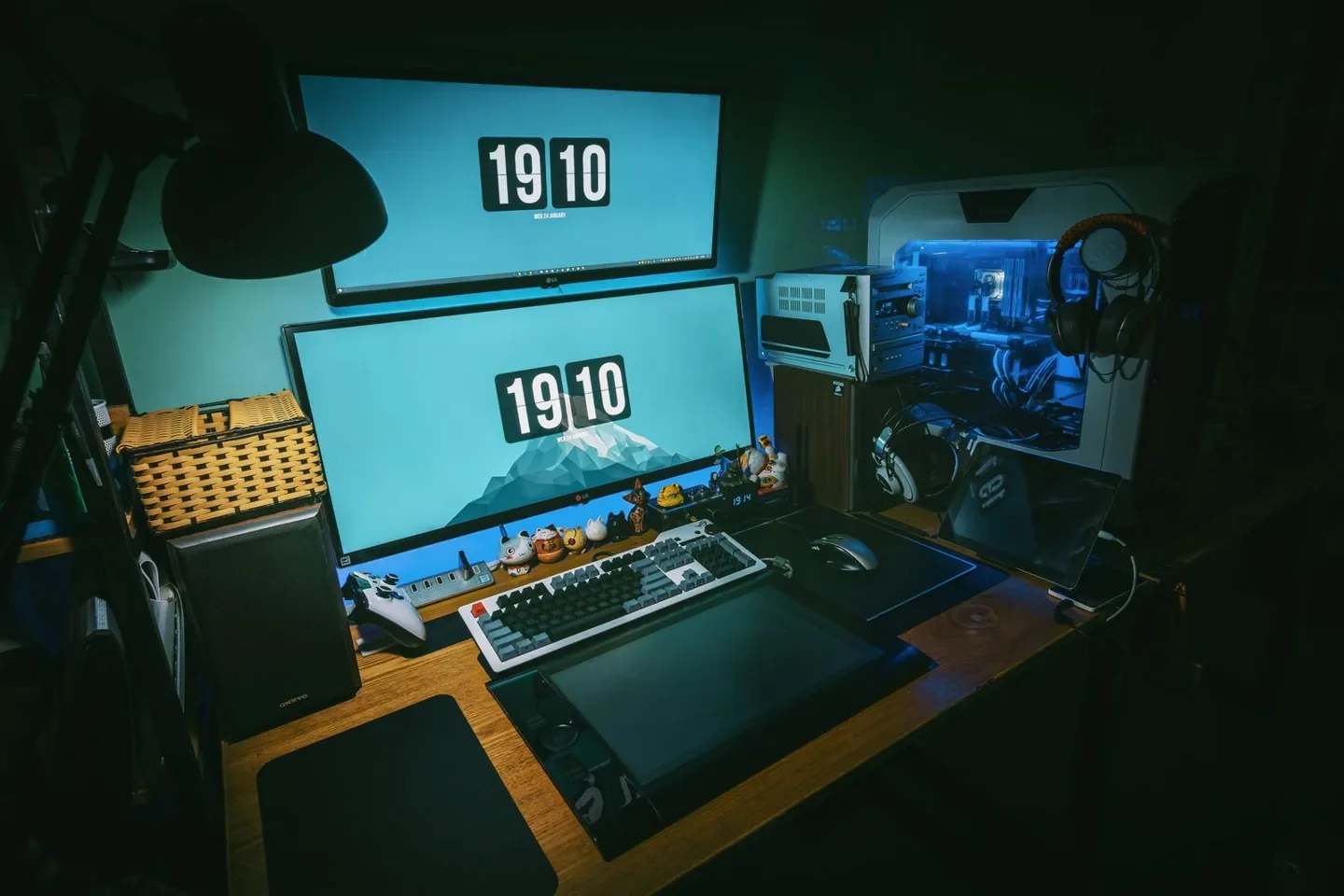
Photo: FOX on Pexels.
Start your first session
- Choose a compatible game. Open its Steam store page and confirm that it lists Remote Play Together and the local multiplayer mode you intend to use. Check how many people the game itself supports.
- Update and launch it on the host PC. Sign in to Steam, start the game, and reach a menu where local multiplayer can be selected. Update Steam and the game before your friends arrive.
- Connect your own controller. Make sure the host can navigate the game and that any local controller settings are working before the first invitation.
- Open the Steam overlay. Valve's support instructions use Shift+Tab by default. If you changed the overlay shortcut, use your configured shortcut instead.
- Invite a friend. In the overlay friends list, right-click the friend and choose Remote Play Together. The guest accepts the invitation on a supported device.
- Join inside the game. Some games ask the second player to press a button or join a local lobby. Accepting the Steam invitation connects the guest; it does not guarantee the game has assigned their controller.
- Test the basics. Have each player move, pause, and use their main action. Check voice and game audio, then invite the remaining players if the title has room.
If the invitation option is missing, first check the game's feature list, confirm the game is running, and make sure the overlay is enabled. Restarting both Steam clients after an update is a reasonable next step. If the game is running outside the expected Steam session or the guest appears offline, resolve that before changing router settings.
Make the connection feel better
Remote Play Together sends video from the host to each guest and returns their inputs. The experience depends on both ends of the connection as well as the host PC. A high download speed on one person's internet plan does not tell you whether the host has enough upload capacity, whether the Wi-Fi is congested, or whether a connection is dropping packets.
Start with a wired connection from the host PC to the router when practical. Valve recommends wired networking for the best streaming experience. Guests can benefit from a stable connection too. If Ethernet is not possible, move closer to the access point, reduce interference where you can, and avoid sharing a weak wireless connection with large downloads during the session.
Test under real conditions. Invite one person, walk around in a game, then add another guest. If the image becomes blocky or controls feel late only when several people join, the extra traffic may be exposing a bottleneck. Pause background downloads and cloud backups, and compare a lower streaming quality or in-game resolution where those options are available.
The host should also watch for local performance problems. If the game is using nearly all of the machine's resources, encoding and streaming may have less room to work. Lower demanding graphics settings, cap the frame rate if the game offers that option, and check whether the host's own gameplay improves. Valve's guide also suggests reducing resolution as one possible streaming adjustment.
Controllers, keyboard sharing, and player order
Before the session, ask everyone what they will use: a controller, keyboard, mouse, or touch controls on a supported mobile device. A game designed around several controllers can be awkward when everyone expects to share one keyboard. Even when Steam can share keyboard and mouse input, the game may treat that input as a single local device.
Connect and test each controller on the guest's own device first. Once connected, use Steam's Remote Play controls and the game's local multiplayer menu to check player assignment. If the wrong person is controlling player one, look at the game's join order and the session's controller arrangement. Reconnect one player at a time rather than having everyone press buttons at once.
Give each person a recognizable task for the test: move left, open the pause menu, or jump once. That makes it obvious when two controllers are affecting the same character or one input is not arriving. If a controller works in the guest's operating system but not in the game, check the guest's Steam input settings and the game's supported controller types before assuming the hardware is broken.
Steam also lets the host manage shared keyboard and mouse access during a session. Share those inputs only when the game needs them and with people you trust. Valve says friends see the game rather than the host's desktop, but the host should still be deliberate about what controls are shared and what appears within the game itself.
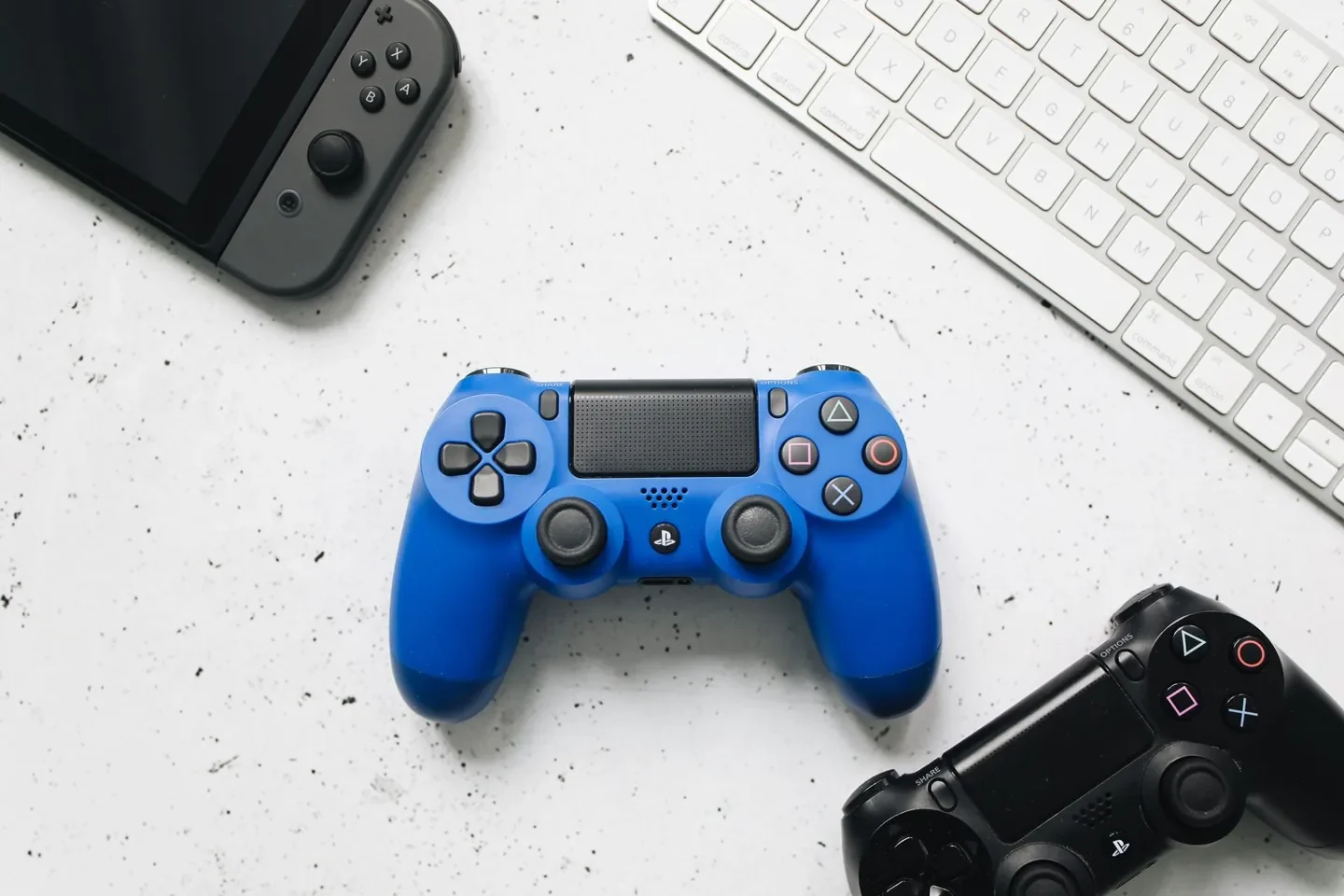
Photo: Polina Tankilevitch on Pexels.
Pick a game for the people in the call
The best first choice is a game with clear local multiplayer, readable text, simple inputs, and a pace that tolerates a little network delay. Steam store pages can change, so recheck the Remote Play Together feature and current local player count when planning.
- Overcooked! 2 is a good fit when your group wants a frantic shared objective. Its store page lists both local co-op and Remote Play Together. Agree on kitchen roles before the orders pile up.
- Unrailed! asks a team to build track and keep a train moving. Its Steam page lists local co-op and Remote Play Together. It rewards communication, but a shaky connection can make quick movement more difficult.
- PlateUp! mixes a cooperative kitchen with restaurant management and longer-term progression. Its Steam page lists shared-screen co-op and Remote Play Together. It suits a group that wants to build a routine over several sessions.
- Ultimate Chicken Horse gives the group a more competitive party-platformer option. Its Steam listing includes shared-screen multiplayer and Remote Play Together. Test the connection first because precise jumps make input delay easier to notice.
Those examples also have online multiplayer features. Compare the two methods before choosing: if every player owns the game and wants to run it locally, native online play may provide a better experience. Remote Play Together is useful when you specifically want to share one supported local session.
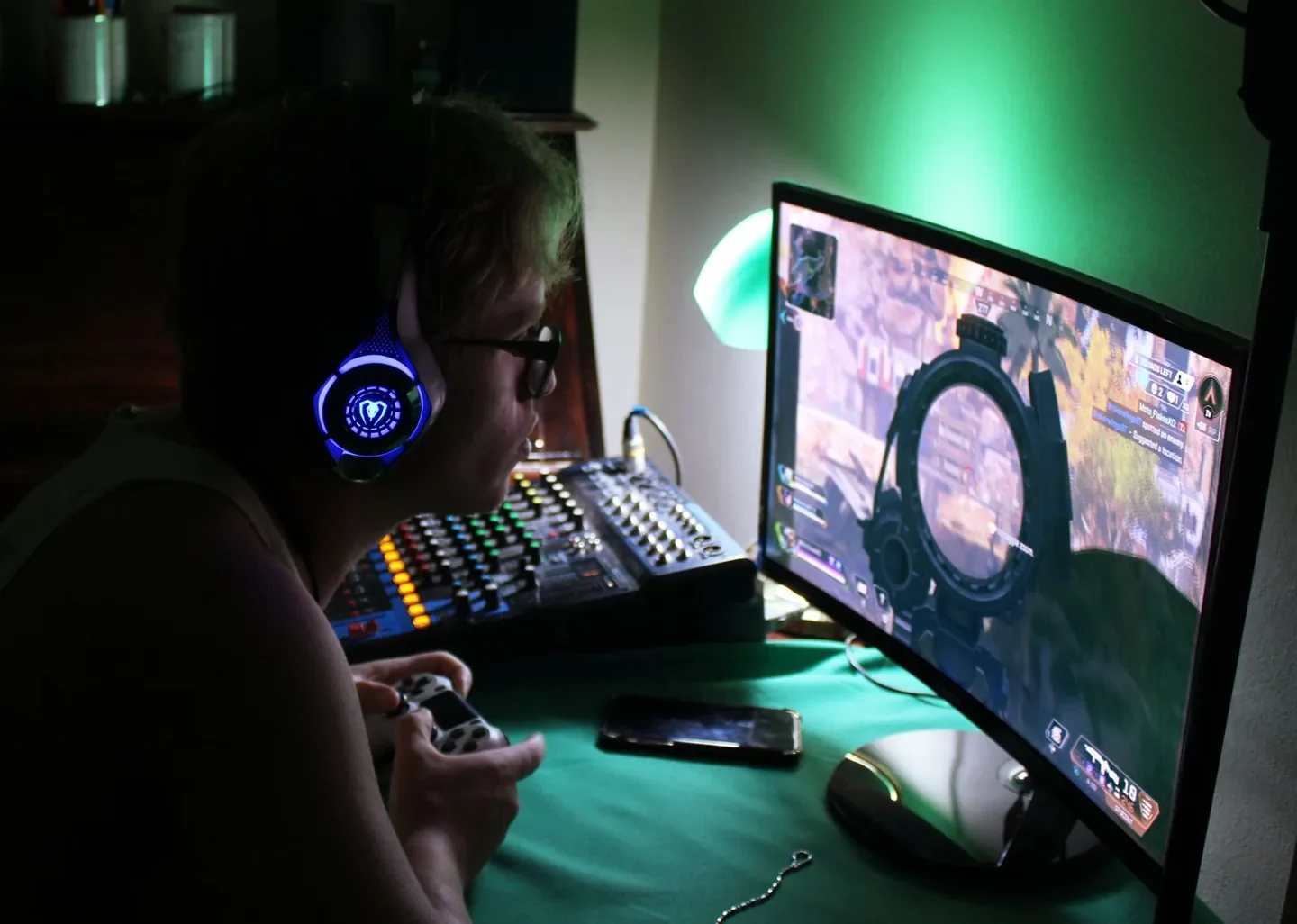
Photo: Ian van der Linde on Pexels.
Fix the most common problems
| Problem | Check first | Next step |
|---|---|---|
| No Remote Play Together invite | Game support, running game, and Steam overlay | Confirm the store-page feature and restart updated Steam clients |
| Guest joins but cannot move | Controller connection and in-game local join prompt | Test the controller locally, then check player assignment |
| Two people control one character | Shared keyboard or controller order | Join one player at a time and adjust session or game settings |
| Video is blocky or controls feel delayed | Host upload, Wi-Fi quality, and background downloads | Try Ethernet, reduce congestion, and test a lower resolution |
| Host hears the game but guests do not | Game audio, host output, and guest playback device | Test with one guest and adjust the session's audio controls |
| Game feels slow for everyone | Host PC performance and graphics settings | Test locally first, then reduce demanding settings |
Treat this table as a starting point, not a list of guaranteed fixes. If only one guest has trouble, compare their network and device with another guest's. If everyone sees the same problem, start with the host's computer, game, and connection. Change one variable, run the same short test again, and keep the settings that actually help.
Make the next game night easy to repeat
Pick one host and one backup game, confirm the Steam feature label, and test with a single guest before the full group joins. Once everyone can control a character and hear the game, take a note of the working player order and any connection settings you changed.
Remote Play Together will not replace every online lobby, but it can rescue a local multiplayer favorite that would otherwise stay unplayed. For a longer-running group looking beyond one session, our guide to choosing an MMO for a weekly gaming group can help you settle on the next commitment.
Related reading

Written by
ApexInterfectum
Co-Founder, PUG Empire | Army Veteran | Full Stack Developer
ApexInterfectum is an Army veteran and co-founder of PUG Empire, a competitive gaming community built on coordinated team play and continuous improvement. He brings a full-stack development background to community tooling and content infrastructure, and serves as technical subject matter expert across the Dirty Rice platform. His writing covers the systems and strategies behind sustainable content creation, competitive growth, and modern streaming workflows.
Community Rating
Rate this article:
Intel & Reactions - (0)
Sign in with Discord to join the conversation.
No comments yet. Be the first to drop some intel.